• Second hand bicycles

    Second hand bicycles

    In response to a blog post ‘Why I keep fixing my bike‘ about the risks of buying a dodgy second hand bike, I wrote the following comment. It’s something I’m quite passionate about so worth storing on my own blog…

    I have bought at least 7 bikes second hand through either ebay or gumtree all without problem. Every bike has been exactly what I was looking for. I wouldn’t buy off an ebay seller with only a small repuatation – and almost all sellers I have seen when searching ebay have 100+ reputation.

    I think the chances of getting a lemon are quite small, but you always have to be careful.

    With a bicycle you are predominantly paying for a decent frame as the rest can be replaced. Its fairly unlikely that the frame will have been damaged. So buy bikes that have well made frames e.g. Cannondale. I’ve purchased a Specialized, Cannondale, Merkx, Orange, Klein and Marin bikes. Most of the bikes I bought would have had a new value in excess of $1000. I’d be most wary of buying a Specialized bike as they are the most common and the current Specialized bikes I’ve seen have very poor welding on the frames.

    Certainly don’t go buying cheap branded bikes new bikes e.g. and shop’s own brand. If you’ve got very little money you can pick up old retro racing bikes for less than $100.

    Limit your search to only bikes that are near buy (i.e. 30 minute drive) so that you don’t waste much time.

    There are many things you can look for:

    1. Has the bike been stored inside – if you see a photo of it hanging up in a garage on its own rack its a pretty good bet that it has
    2. Buy ‘fixed’ bikes without suspension as the suspension can be expensive to replace
    3. Look at the type of gears that it has
    4. Check how detailed the spec of the bike is – does the person list exactly all the components – this gives an indication of how much the person cares about the bike
    5. Do they state where they bought it from
    6. Do they display high quality images of close ups of the gears, the joins of the frame where cracks appear
    7. What have they been using the bike for
    8. How often do they clean the bike
    9. Ask what year the bike is from as well as the exact make and model – then hopefully you can find a reference to how much the bike was when it was new.
    10. Check the welding on the bike frame – how clean are the welds. You shouldn’t be able to see the welds – as that means it was a cheaply made bike by machines and never finished off.
  • Dos command history

    Dos command history

    One of the nice things of Linux is the command history – it stores typically the last 1000 commands or so and its saved every time you log out.

    DOS does have this through the doskey /history command (but only for current session) and you can relatively easily append this to a file:


    doskey /history >> %USERPROFILE%\history.txt%

    view raw

    doskey.bat

    hosted with ❤ by GitHub

    The tricky bit is having this done for you on log out.

    Via a Stack Overflow question on bash_history you can get close, using doskey macros which appends to a file on exit.

    This only works for the current session though so you need to create a shortcut that runs the command each time with the following Target:


    %windir%\system32\cmd.exe /K doskey exit=doskey/history$g$g%USERPROFILE%\history.log$texit $1 $2

    Then you just have to remember to type exit each time…

    Shortcut target
    Shortcut target

    Update

    I also found three useful commands – but they’re only for your current session. Hat tip to Nifty Computer Tricks:

    F3
    get last command
    F7
    current list (use left/right arrow keys to paste to the command line)
    F8
    auto-complete (type the first few letters)

    Update 2 – Some extra love for the DOS prompt…

    If you’ve got this working then I’ve added some extra basics. First you need to install Git (and I suggest you do it using the Chocolatey package). This includes the best versions of gnu commands compiled natively for Windows.

    Add the Git usr bin directory to the path e.g. C:\Program Files\Git\usr\bin.

    Then download my !.bat / history.bat gist:

    Put the !.bat and history.bat into the Git usr bin directory too. These assume you are saving the history to %USERPROFILE%\history.log.

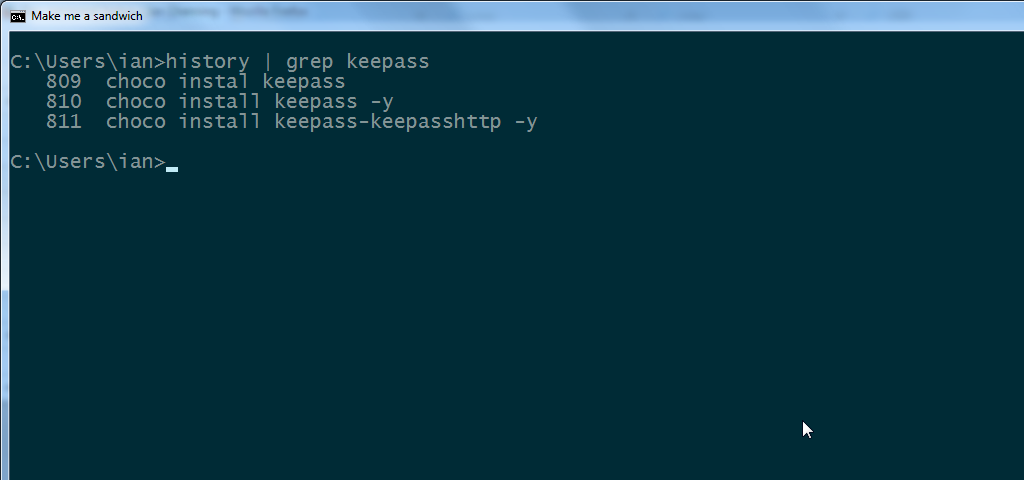
    Then you’ll be able to do commands like history | grep mysql to list all your mysql commands in history.log with their line numbers. Then call ! 123 to execute the specific line of the history.log file.

    Update 3 – Clink love

    Martin Ridgers’ Clink is an awesome tool to behold. That adds the correct ! command to the DOS command prompt. Buuuuuuut… it doesn’t include a history command. So save the above history.bat file to C:\Windows\System32\history.bat (it doesn’t have to rely on GNU Tools / Git) and uncomment history_file=%localappdata%\clink\.history.


    @echo off
    rem simple replacement for linux ! syntax e.g. !591
    rem usage: ! N (executes line N of history.log)
    rem @link http://ianchanning.wordpress.com/2014/10/29/dos-command-history/
    if "%1"=="" goto Syntax
    if "%1"=="/?" goto Syntax
    for /f "tokens=*" %%x in ('sed -n "%1{p;q}" %USERPROFILE%\history.log') do echo %%x & cmd /c %%x
    goto End
    :Syntax
    echo usage: ! N
    :End

    view raw

    !.bat

    hosted with ❤ by GitHub


    @echo off
    rem replacement for linux `history` command
    rem usage: history
    rem @link http://ianchanning.wordpress.com/2014/10/29/dos-command-history/
    set history_file=%USERPROFILE%\history.log
    rem For if you are using Martin Ridgers 'clink'
    rem @link http://mridgers.github.io/clink/
    rem set history_file=%localappdata%\clink\.history
    rem this doesn't require GNU Tools, but doesn't have line numbers
    rem type history_file
    rem requires GNU Tools installation (e.g. Git SCM)
    cat -n %history_file%

    view raw

    history.bat

    hosted with ❤ by GitHub

  • For those stumbling down a similar path…

    tldr; Check that your Windows Firewall is turned off.

    My setup

    • OS: Windows 8.1 64-bit laptop
    • OpenVPN: OpenVPN 2.3.4 x86_64-w64-mingw32

    My OpenVPN has been working for at least 4 months without problem.

    First thing to remind yourself is: When you get the VPN working – copy the OpenVPN log of a successful connection and the ipconfig /all to file so that you know what to compare when it breaks next time.

    Notes

    • The VPN connection stopped working yesterday 17/10/2014
    • Not exactly sure when
    • It had been working at my office
    • My Windows 7 desktop has a working VPN setup so I can compare the settings
    • The OpenVPN gui suggests a connection has been made but no sites can be pinged (see commands below)
    • All attempts at inconfig /renew, ipconfig /flushdns nothing worked
    • Only differences between Desktop/Laptop I could find in ipconfig /all and OpenVPN logs was that laptop had IPv6 for the WiFi connection turned off and the following extra fail message UDPv4: No Route to Host in the log
    • I tried turning IPv6 back on but that didn’t change anything
    • Now the UDPv4 message disappeared – but didn’t reappear when I turned off IPv6 again – so that was a red herring
    • Possible suggestion from my history when first setting up my VPN (http://www.rickygao.com/troubleshooting-general-failure-in-ping-or-tracert/) was to turn off IPv6 which is what I’d probably done before – but IPv6 is no problem on my Windows 7 desktop
    • Pinging even a specific IP address does not work – this confirms its not a DNS issue
    • Pinging localhost 127.0.0.1 does work
    • Pinging the IP Address of the connected VPN does work

    [code lang=text]
    C:\Users\Ian>tracert google.com
    Unable to resolve target system name google.com.

    C:\Users\Ian>ping google.com
    Ping request could not find host google.com. Please check the name and try again.
    [/code]

    Solution

    Eventually found a solution that was to turn off the windows firewall, which came from this unbuntu forums post which eventually spotted that it was an iptables firewall issue.

    Post mortem

    • I thought I’d turned off my firewall and it doesn’t explain why the VPN stopped working
    • Best guess is a Windows update changed something in the firewall the caused the problem
    • The only Windows updates I received on 17/10/2014 were
    • A failed update for Windows Malicious Software Removal Tool for Windows 8, 8.1 and Windows Server 2012, 2012 R2 x64 Edition - October 2014 (KB890830) – this was successfully installed the next day but didn’t help
    • A successful Definition Update for Windows Defender - KB2267602 (Definition 1.185.3528.0)
  • I’ve started a fairly standard process of writing a Google Doc when I’m trying to learn something technical that I don’t understand and then if its half useful posting it to WordPress.

    I know I could then copy paste the code from there to WordPress – but I’m a fan of writing WordPress posts in Markdown. For one reason, I need to switch all the titles to be one level lower in WordPress than Google Docs and its simpler to do that in Markdown. Also and code I put into Courier font in Google docs gets converted to code in Markdown, but gets lost when copying and pasting.

    So I’ve found that there’s a script to export Google Docs. There is an annoying issue in that you have to re-do the steps everytime you want to export a document to Markdown. To get around this, I suggest that you just have one document that you use for converting to Markdown and copy/paste each Google Doc into that. Upon running the script from the Script Editor you get emailed a markdown version of your document.

    2014-10-04 19_40_06-ConvertToMarkdown

    Then copy & paste the markdown syntax into WordPress.

  • This is for installing the main packages that Netbeans suggests in the Tools > Options > PHP (tab)

    I’m running the following setup currently [21st April 2015]:

    • Windows 8.1 (64-bit)
    • Netbeans 8.0.2
    • The version of Composer doesn’t really matter
    • PHP 5.3.28 (It’s sooo last decade, I know…)

    tldr;

    Just the commands:

    [code lang=text]
    composer global require "phpunit/phpunit=4.6.*"
    composer global require "phpunit/phpunit-skeleton-generator=*"
    composer global require "squizlabs/php_codesniffer=*"
    composer global require "phpmd/phpmd=@stable"
    composer global require apigen/apigen:~2.8
    [/code]

    Then the files to call are in C:\Users\[username]\AppData\Roaming\Composer\vendor\bin\

    Global packages

    running composer global installs the packages into %APPDATA%\Composer (or ~/.composer/ in Linux)

    PHPUnit

    From the installation instructions (https://phpunit.de/manual/current/en/installation.html) do:

    composer global require "phpunit/phpunit=4.6.*"

    This installs PHPUnit to C:\Users\[username]\AppData\Roaming\Composer\vendor\phpunit and puts the binary to use in Netbeans in C:\Users\[username]\AppData\Roaming\Composer\vendor\bin\phpunit.bat

    Then put C:\Users\[username]\AppData\Roaming\Composer\vendor\bin\phpunit.bat into Netbeans Tools > Options > PHP (tab) > Frameworks & Tools (tab) > PHPUnit section.

    Skeleton Generator

    From the installation instructions (https://github.com/sebastianbergmann/phpunit-skeleton-generator) run:

    composer global require "phpunit/phpunit-skeleton-generator=*"

    Then put C:\Users\[username]\AppData\Roaming\Composer\vendor\bin\phpunit-skelgen.bat into Netbeans Tools > Options > PHP (tab) > Frameworks & Tools (tab) > PHPUnit section.

    PHP_CodeSniffer

    composer global require "squizlabs/php_codesniffer=*"

    Then put C:\Users\[username]\AppData\Roaming\Composer\vendor\bin\phpcs.bat into Netbeans Tools > Options > PHP (tab) > Code Analysis (tab) > Code Sniffer section.

    Mess Detector

    composer global require "phpmd/phpmd=@stable"

    Then put C:\Users\[username]\AppData\Roaming\Composer\vendor\bin\phpmd.bat into Netbeans Tools > Options > PHP (tab) > Code Analysis (tab) > Mess Detector section.

    apigen

    composer global require apigen/apigen:~2.8

    For me this failed see apigen issue #316. The answer to that was to use ~4.0, but that requires PHP >= 5.4

    Then put C:\Users\[username]\AppData\Roaming\Composer\vendor\bin\apigen.bat into Netbeans Tools > Options > PHP (tab) > Code Analysis (tab) > ApiGen section.

  • Node comes with an installer, but I hit a couple of bugs that knackered my initial attempts to call either node or npm.

    I followed the installation instructions trying to run a command for the first time and got 'node' is not recognized as an internal or external command. For anyone else with the same issue here’s what I stumbled through.

    I’m running Windows 8.1 (64-bit) with Node v0.10.32.

    1. Run the .msi installer
    2. This installs it to C:\Program Files\nodejs

    In that directory is node.exe for running node commands and npm.bat for installing node modules.

    Environment variables

    The simplest solution for this is just to do a restart, but for thos who don’t want to aka me…

    The installer doesn’t seem to install the environment variables properly (at least it didn’t when I was using windows 8).

    So although if you edit the Environment variables you will see that C:\Program Files\nodejs in the path, if you go into a command prompt and type echo %PATH% it doesn’t appear.

    I’m not sure why – but I had to make a minor modification to the PATH, save it and then put the modification back for the nodejs to show up in the path.

    Then you can run either node or npm from anywhere.

    Get the home page server example.js working

    Here’s the code just in case something changes:

    [code lang=text]
    var http = require('http');
    http.createServer(function (req, res) {
    res.writeHead(200, {'Content-Type': 'text/plain'});
    res.end('Hello World\n');
    }).listen(1337, '127.0.0.1');
    console.log('Server running at http://127.0.0.1:1337/');
    [/code]

    For some reason even though C:\Program Files\nodejs had been added to the system PATH it wasn’t showing up in my path when running dos commands – it took editing the path and saving it to suddenly show up the nodejs in the path.

    Once you’ve got the path set up properly then you just have to create the example.js file and run the following commands from a windows command prompt:

    [code lang=text]
    > cd C:\path\to\node\example
    > node example.js
    [/code]

    Getting npm working

    1. There is a npm.bat command in C:\Program Files\nodejs
    2. However there’s a known npm issue that requires that the %APPDATA%\npm directory has been created manually otherwise npm doesn’t work
    3. You’ll get an error along the lines Error: ENOENT, stat 'C:\Users\[username]\AppData\Roaming\npm'
    4. So you have to create your own %APPDATA%\npm

    N.B. For “dummies”, aka me: where ever you run npm install in the windows command prompt it will create a node_modules directory and install the module under there
    e.g.

    [code lang=text]
    C:\Users\[username]> npm install grunt
    [/code]

    will install grunt into C:\Users\[username]\node_modules\grunt not into %APPDATA% or C:\Program Files\nodejs\node_modules

  • rebeccapurple

    This site’s background is rebeccapurple, its based on the memory of Eric Meyer’s daughter. I have a daughter of two, so reading his tales of anguish are deeply moving.

  • If you didn’t write the plugin – how do you translate it? I found lots of information for plugin developers to make their plugins translatable but not for people that just want to translate it.

    Executive summary / tl;dr

    Edit: The Codestyling Localization plugin I suggested previously isn’t available from WordPress directly any more.

    Instead there seems to be an equally good plugin Loco Translate that is complemented by the developers own site for translating any application.

    Failing that try the ‘Blank WordPress POT’ with POEdit and put that in the plugin’s languages directory. This seems to be a rock solid approach but takes a bit of learning.

    If you put your translations in the plugins language directory, you’ll lose your translations when the plugin gets updated. Either keep backups or, if the plugin loads the translations correctly, you can put your translations in the separate wp-content/languages/[plugin-name] directory.

    For worker ants who want to know a bit more

    1. The plugin must be translatable (It has been internationalized)
    2. You can check this by looking through the plugin code
    3. Otherwise just carry on and hope that the developer made it translatable
    4. Then you need to create a translation file that converts the English words into your language (localize it)
    5. A POT (.pot) file is a skeleton file that contains all the words and phrases in the plugin that can be translated
    6. A .po file is a .pot file that has had the translated strings in your language added next to each of the translatable phrases
    7. When you save a .po file it also generates a .mo file (where as you can read a .po file in notepad you can’t read a .mo file)
    8. WordPress plugins rely on .mo files
    9. You first need to find the .pot file
    10. Typically this will be in the root of the plugin directory
    11. Or it will be in a languages directory
    12. If you find it, great. Open it in POEdit, do your stuff and save
    13. If it hasn’t been created at all …
    14. … Then you need to check in the code (look for load_plugin_textdomain in the main plugin file) to see where/if you should create one and create the .pot file yourself

    If you don’t know about editing PO files I suggest following the WordPress instructions on using POEdit.

    For developers to ‘internationalize’ their plugins

    I recommend using the Blank WordPress POT file that I mention below in the POEdit revisited section.

    Translation fumbling

    POEdit

    Initially I tried the POEdit method recommended in WPMU DEV tutorial

    However the POT files that I made never worked – they didn’t pick up the translated words. I think it was because of __() and _e() instead of __ and _e.

    makepot.php

    • WordPress
      and Tom McFarlin talk about using makepot.php but its confusing if you’re not using Linux
    • It requires using the wp-plugin as the project name which I assumed that you changed to the name of your plugin but you don’t – it has to stay wp-plugin
      so the required command is (for windows):
    • cd path\to\tools\i18n
    • php makepot.php wp-plugin path\to\plugins\your-plugin-name
    • However I got the following error when running it from windows
    • 'msguniq' is not recognized as an internal or external command
    • This appears to be because msguniq is a linux command
    • Actually this had created the your-plugin-name.pot file in the plugin directory but I just didn t realise because of the error
    • If you do want to use makepot.php use grapper’s Github i18n repo which includes all the correct WordPress files rather than the official WordPress subversion directories.

    POEdit revisited

    Hidden at the end of the WordPress localization document is the excellent ‘Blank WordPress POT’.

    That can be put in the plugin’s languages directory and has instructions for creating the PO files from it:

    The pot file include in this folder is ready to use.

    1. Double click on it and open it with poedit
    2. In poedit goto File → New Catalog from POT file…
    3. Select and Open the pot file from the languages folder
    4. Enter your name, email address, your language and country (i.e. french fr_FR, german de_DE) to the setting form
    5. Click the update button in the main poedit ui.
    6. Save the file :
    7. For a plugin like filename-xx_XX.po with xx_XX for your language and country.
    8. For a theme xx_XX.po
    9. That’s it, go to your WordPress blog and see your translation in action. N’joy your blogging!!!

    This actually worked first time that I tried it – i.e. it pulled in all the translated strings.

    First off you can then save the file as a my-plugin-name.pot file in the languages directory. Then you can add in your translations and save it with the locale xx_XX.po file ending and that should generate the .mo file that you need too.

    Plugins

    Edit: The simplest route was via the Codestyling Localization plugin.

    But that is no longer available through the WordPress plugins directly – possibly because it isn’t working or from a security issue. It is still available via the developer’s own site though

    Instead you can use Loco Translate which appears to be excellent – but I haven’t tried it.

    (These are old instructions for Codestyling Localization) Once it is installed:

    1. Click ‘Add New Language’
    2. Select your locale and it generates an empty .po file
    3. Click ‘Rescan’ to populate the .po file
    4. Click ‘Edit’ and ‘generate mo file’ to get the .mo file out

    Dealing with plugin updates

    None of this solves the problem that you will lose your translation files once when the plugin is updated.

    Copy your .po files into the wp-content/languages/[plugin-name] directory – which might or might not work. If yes, great, if not raise a support query (be nice and give details) with the plugin developer.

    This directory is update safe basically because of the translations are loaded with the following priority:

    1. wp-content/languages/[plugin-name] (never changed by updates)
    2. wp-content/languages/plugins/ (changed with updates)
    3. wp-content/plugins/[plugin-name]/languages (changed with updates)

    If developers follow this Geert DeDeckere’s excellent guide on loading WordPress language files the right way then there shouldn’t be a problem with using the wp-content/languages directory.

    You can also read WooCommerce’s documentation on Making your Localization upgrade safe which recommends either Loco or using /wp-content/languages/woocommerce.

    I found these two Support questions useful for learning about handling upgrades: